






Using an iPhone in Pakistan? But suddenly facing unusual network issues and now you don’t know what to do, don’t worry you’re not alone. One day your iPhone connects instantly. Next day Wi-Fi drops, mobile data feels slow or Bluetooth refuses to pair. Nothing is changed from your side, yet everything feels broken. This might be the right time to learn how to reset network settings on iPhone. If it’s a network setting problem you might be experiencing undelivered WhatsApp messages, weak internet connection and even sudden drop of calls. It’s frustrating, especially when you haven’t changed anything and the device usually runs perfectly. It can be a hardware fault but it’s very rare you might need to update your software or reset the network setting because network glitches quietly build up over time due to saved connections, carrier settings or connectivity conflicts. Today we’ll tell you all about exactly how you can reset network settings on an iPhone and understand when this step is necessary.
What Problems Does Resetting Network Fixes?
Before jumping into steps, let’s talk honestly about why you even need to reset the network setting. In iPhones and most other smartphones network settings act as a control panel for almost everything related to connectivity; Wi-Fi passwords, Bluetooth connections, VPN profiles, mobile data configurations etc. When glitches build up, your phone may struggle to communicate properly. Resetting network settings usually helps when:
- Difficulty in connecting Wi-Fi
- Wi-Fi connects but internet doesn’t work
- Mobile data option turns on slowly
- Internet connection is slow on mobile data
- Bluetooth devices are not pairing and disconnecting repeatedly
- Personal hotspot stops sharing internet
- SIM network errors appear after updates
- VPN causes slow browsing or blocked apps
No matter if you are using the latest model like iPhone 17 Pro Max or older ones like iPhone 15 or iPhone 16 Pro connectivity bugs after the update can occur. The phone itself isn’t the problem. Old settings may not sometimes match with the new system environment. A simple reset can clear those invisible conflicts, giving your connectivity system a fresh start.

How to Reset the Network Setting on iPhone
Apple gives more than one way to fix network problems. Some solutions reset everything while others target only specific issues. The right method can save time and prevent unnecessary resets:
1. The Main “Reset Network Settings” Method
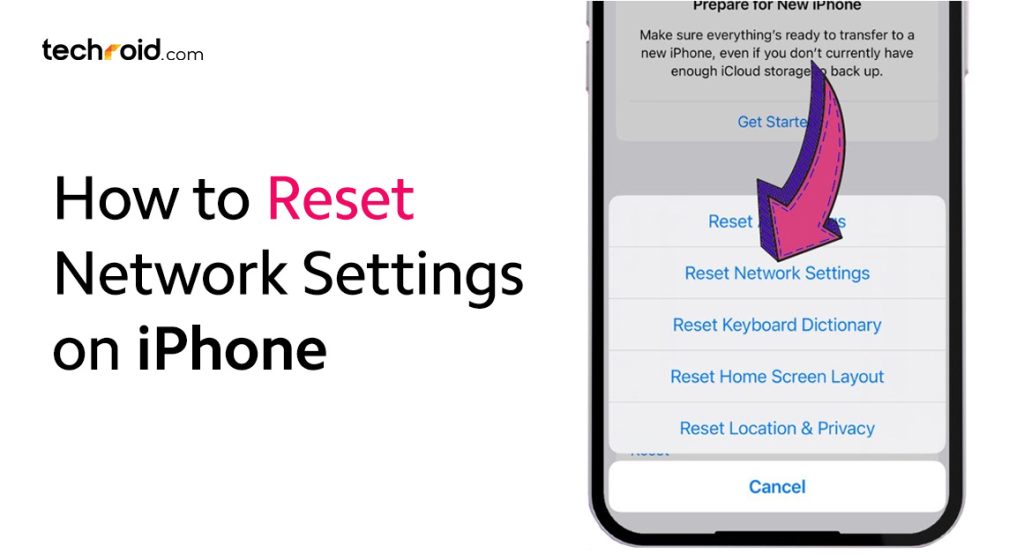
This is the most reliable solution for many users in Pakistan. It can solve all the network related issues like Wi-Fi turning off on its own and delayed Bluetooth pairing. It can reset your saved Wi-Fi networks and Bluetooth paired devices will be forgotten by the phone. Your personal data photos, apps and messages remain untouched. Follow these steps carefully:
- Open Settings
- Tap General
- Scroll down and select Transfer or Reset iPhone
- Tap Reset
- Choose Reset Network Settings
- Enter your passcode
- Confirm the reset
Your iPhone will restart automatically. Once it turns back on, you’ll need to reconnect Wi-Fi networks and pair Bluetooth devices again. Many users notice improvement immediately after reconnecting.
2. “Reset All Settings” Method
Sometimes network problems come from deeper system conflicts. If the first method doesn’t work, this option goes one level further. It resets your iPhone without losing the data. Here are the simple steps:
- Open Settings
- Go to General
- Tap Transfer or Reset iPhone
- Select Reset
- Choose Reset All Settings
Here’s what changes:
- Network settings reset again
- Keyboard dictionary clears
- Home screen layout resets
- Privacy and location permissions refresh
- Apple Pay cards remove
Your apps and media remain untouched but still it’s best to back up your personal files. We usually suggest this only if regular network reset fails.
3. Individual Network Fixings
Not every problem requires a full reset. Sometimes a small adjustment solves everything. These targeted fixes can save time when the issue is only related to one network type:
Forget a Specific Wi-Fi Network:
If only one Wi-Fi connection causes trouble:
- Go to Settings > Wi-Fi
- Tap the ⓘ icon next to the network
- Select Forget This Network
- And reconnect again by typing the password
Remove VPN Profiles:
VPN apps sometimes interfere with normal browsing.
- Open Settings
- Go to General
- Tap VPN & Device Management
- Select the VPN profile
- Choose Remove Profile
- Connection speed often improves instantly after this
Delete eSIM or Cellular Profile:
Facing mobile signal issues?
- Go to Settings > Cellular
- Select the SIM or eSIM
- Remove it if necessary
- Reinsert or reconfigure later
What Happens After a Network Reset?
After the network reset your iPhone may restarts automatically, this part surprises many users but it’s normal. After the reboot:
- All Wi-Fi passwords disappear
- Bluetooth devices disconnect
- VPN settings remove
- Cellular configurations refresh
You simply have to reconnect everything again. The process takes only a few minutes but it can save you from hours of frustration later.
Important Things to Remember Before Resetting
Don’t skip these or you’ll regret later. Before pressing the reset option, do these small preparations:
- Save Wi-Fi passwords somewhere safe. You’ll need them again after the reset.
- Note down your VPN login details. Freelancers or university users often forget this step.
- Remove unnecessary Bluetooth devices first. Cleaning unused pairings helps avoid future conflicts.
- Update your iOS software if available. Sometimes Apple already fixed the issue in a newer update.
- Remember your cellular configurations you might have to set them again after reset.
Final Verdict
Connectivity problems feel stressful because they interrupt daily life. Calls, streaming and even browsing becomes annoying. We tried to explain how you can reset your network settings on your iPhone in the easiest way today. Instead of guessing or rushing to a repair shop, you can fix most issues yourself within minutes. Apple devices are powerful, whether you’re using an older model or planning to buy a new one in Pakistan. If this guide made you realize it might be time for an upgrade and Techroid.com is always there for you. We offer the lowest iPhone prices in Pakistan, all our iPhones are genuine, PTA approved and warranty-backed. We deliver all our Apple products securely right at your doorstep without charging any delivery fee. You can even visit our physical stores in Lahore at Dolmen Mall and Gold Crest mall and experience your favorite products before even buying. So next time your internet stops cooperating, don’t panic just try resetting smartly.
FAQs
Q: Will resetting network settings delete my online payment passwords?
A: No, only Wi-fi passwords, paired Bluetooth devices, VPN settings and SIM configurations will reset.
Q: How do I reset my iPhone without losing everything?
A: By going to General in your settings, you can select Transfer or Reset iPhone and from there you can select the option ‘Reset All Settings’ this will reset the personalized setting from your phone without affecting your personal data.
Q: Will software updates solve network problems on an iPhone?
A: Yes, most of the time Apple already fixes the bugs and issues related to network problems in their software update. Before resetting, try updating the software.